
What is a phone system for remote teams?
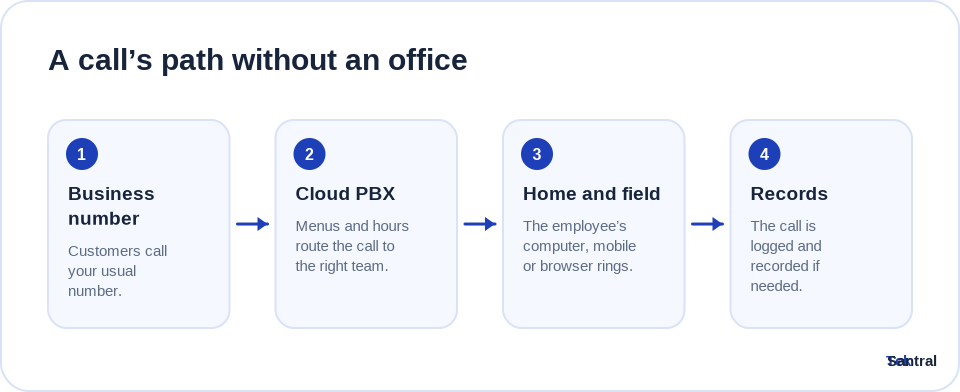
A phone system for remote teams is a cloud-based system that lets employees make and take calls on the company number even when they are not in the office. They work from home, the field or on the move with the same extension on a computer, mobile or browser, while customers keep calling the same number.
On a classic PBX, extensions are tied to office cabling; when staff leave the office, their phone stays behind. On a cloud PBX the extension belongs to a person and works wherever there is internet. That turns the phone system from an obstacle into an enabler for hybrid and fully remote businesses.
Related pages: What Is a Cloud PBX? How It Works, PricingBrowser Phone, Mobile and IP Phones
Why a PBX extension rather than a personal mobile?
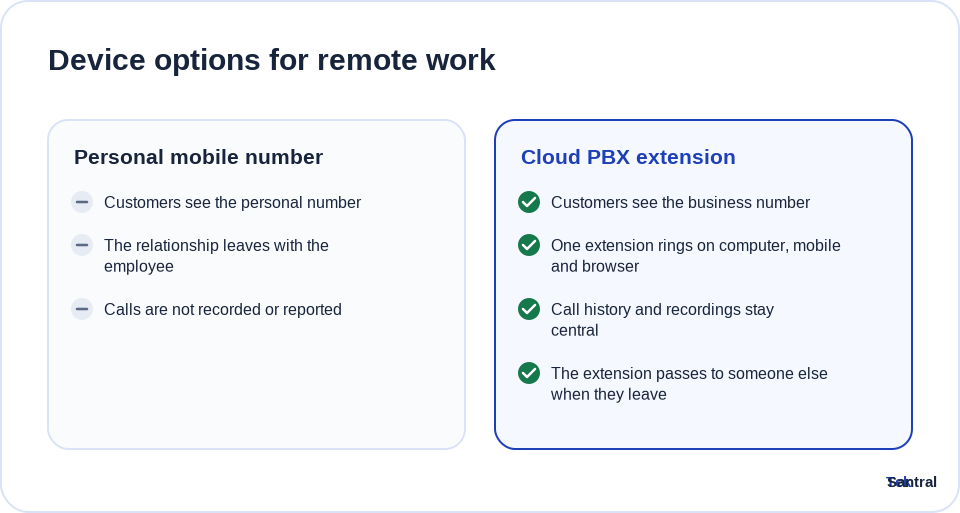
Many businesses moving to remote work first share employees’ personal mobile numbers with customers. It is quick but creates lasting problems: the relationship belongs to the person, the number leaves with them, calls are not recorded or reported and after-hours calls invade private life.
A cloud PBX extension removes these problems. Customers call the business number and see it on outgoing calls. When people change, the extension passes to someone else and the call history stays with the company. With a business-hours plan, after-hours calls go to voicemail rather than the employee’s phone.
Which devices do remote teams use?
The three most common options are a softphone on the computer, a SIP app on the mobile and the browser phone in the customer panel. Desk workers find a computer and headset most comfortable; field staff prefer the mobile app; those who want no installation use the browser phone.
At TekSantral one extension can be signed in on several devices and calls ring on all of them. An employee can use the same extension on a computer in the morning and a mobile in the field in the afternoon.
| Device | Best for | Watch out for |
|---|---|---|
| Computer + softphone | Desk workers on the phone all day | A USB headset improves audio |
| Mobile SIP app | Field and mobile staff | Pick an app with push notifications |
| Browser phone | Those who want nothing to install | Keep the tab open; it can open in its own window |
| IP desk phone | People with a fixed home desk | Must support SIP |
Related pages: Choosing IP Phones and SoftphonesBrowser Phone, Mobile and IP Phones
How do you set up a PBX for remote work?
Setting up a PBX for a remote team is no different from an office set-up; the devices are just wherever people are. These steps take most businesses an hour or two.
- Create an extension per person with voicemail by e-mail.
- Group teams into ring groups: sales, support, accounts.
- Connect the number to a greeting menu and hours plan.
- Give staff their SIP details or browser phone access.
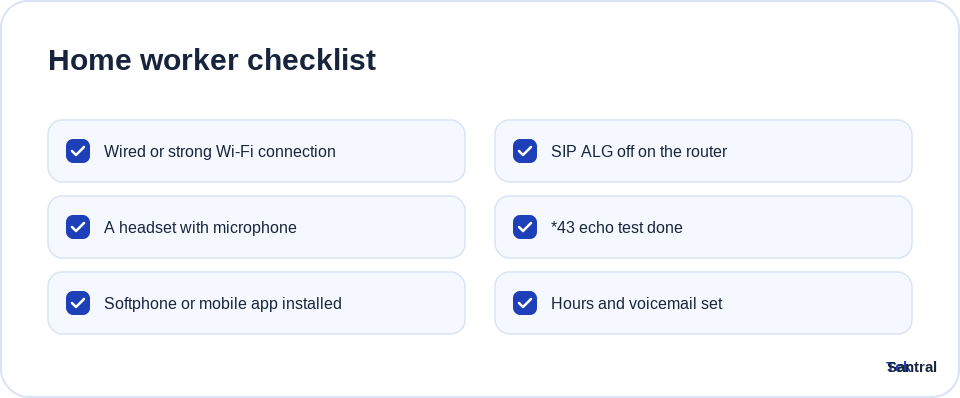
- Have everyone check audio with the *43 echo test.
- Watch missed calls in the first week and refine the flow.
Related pages: Cloud PBX Migration Guide and Checklist
How do you keep audio quality at home?
At home, connection stability matters more than speed. Each call uses roughly 100 kbps, so speed is rarely the issue; but big downloads, streaming or weak Wi-Fi on the same network can cause drop-outs.
If possible, cable the computer to the router; on Wi-Fi, work close to it and turn off SIP ALG. A headset with microphone helps the other side hear you clearly and reduces echo at home.
Related pages: What Is SIP? SIP Account vs SIP TrunkSupport and Setup Guides
How do you manage and monitor a remote team?
Managers’ biggest worry with remote work is not seeing whether calls are answered. The live status screen shows which extensions are online and which calls are in progress; call history lists who answered which call and which were missed.
Call recording helps with training and quality checks; callers must be informed when you record. Internal calls are free, so team members can call each other on the company system without sharing personal numbers.
Live status
See who is online in real time.
Call history
Filter answered and missed calls.
Call recording
Listen to recordings for training and quality.
Related pages: Call Recording and KVKK: A Business Guide10 Ways to Reduce Missed Calls
How do you set up a PBX for hybrid work?
In hybrid work some of the team is in the office and some at home or in the field, and the mix changes daily. A cloud PBX handles this naturally: the extension belongs to the person, so they take calls on the same extension wherever they are. A desk phone in the office, a computer at home and a mobile app on the road can all share one extension.
Building teams as ring groups sends calls to the right team regardless of who is where. A sales call rings on the desk phone of the rep in the office and the computer of the rep at home at the same time; whoever answers first takes it.
With hot desks and shared spaces, it is practical to use desk phones as department extensions rather than tying them to people, while personal extensions live on staff computers and mobile apps.
Personal extension
On the employee’s computer and mobile app.
Department extension
On the shared office desk phone.
Ring group
Rings all the team’s devices together.
Related pages: Cloud PBX for Multi-Branch BusinessesCloud PBX for Logistics Companies
Security for remote work
With staff connecting from different networks, account security matters even more. Use the strong password the panel generates for each extension, never share passwords openly by e-mail or messaging apps and close a leaver’s extension at once.
Limiting outbound permissions also cuts risk. At TekSantral, international and premium-rate calls are off by default and opened on request. If you record calls, only authorised people should access recordings and callers must be informed.
- Copy passwords from the panel; never share them in plain text.
- Delete or reset the extension of anyone who leaves.
- Turn off outbound calling on extensions that do not need it.
Related pages: Call Recording and KVKK: A Business Guide
A sample plan for going remote
For a business moving from the office to remote work, the phone side can switch in a day. On day one, extensions and ring groups are prepared in the morning; in the afternoon staff get SIP details or browser phone access and everyone runs an echo test. The next day the number joins the new flow and the first calls are watched.
During the first week, watching missed calls in the call history and offline extensions on the live status screen spots staff with connection or device issues early. For them, turning off SIP ALG and using a headset is usually enough.
Related pages: Cloud PBX Migration Guide and Checklist
Communication rules for a remote team
Team rules matter as much as technology. Agree in advance who answers which calls, what people do when leaving their desk and when to transfer calls. Someone stepping away for a while can turn on do-not-disturb, so calls go to others in the ring group instead of going unanswered.
Share the extension list and short codes with the team. Calling colleagues by extension is free and removes the need to share personal numbers.
The goal of remote work is that customers never notice where the team is: they dial the same number, hear the same greeting and reach the right person. A cloud PBX delivers this without an office.
Common mistakes in remote work
The phone system is often the last thing considered when going remote. These mistakes weaken customer experience once the team is spread out.
- Sharing personal numbers with customers.
- No after-hours plan, so staff get calls at night.
- Making one person responsible for every call.
- Not checking headsets and connections.
- Not closing a leaver’s extension.