IVR interactive voice response: The right key, the right team. From the first second.
What is IVR and how does it work? Route calls in TekSantral with keypad greeting menus, nested menus, direct extension dialling and business-hours schedules.
What is IVR (interactive voice response)?
IVR is a PBX menu that greets callers with a recorded message such as “Press 1 for sales, 2 for support” and routes the call based on the key they press. It is also known as an auto attendant or voice menu.
An IVR replaces a phone that rings one person: callers reach the right team on the first try, reception stops spending time on transfers and your business sounds like a large organisation. In TekSantral, voice menus are included in every plan and set up from the customer panel.
Related pages: What Is a Cloud PBX? How It Works, PricingAI Voice Assistant for Business Calls
How does an IVR work?
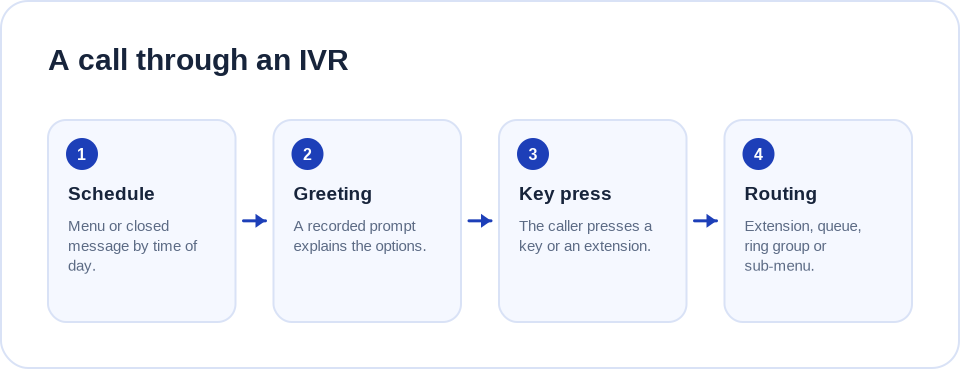
A call to your business number first meets the schedule and then the voice menu. The menu plays the greeting and waits for the caller to press a key:
- If the caller presses a configured key, the call goes to that key’s destination.
- If extension dialling is on, the caller can dial a known extension directly.
- If no key is pressed, the greeting repeats the number of times you set, then the call goes to the no-input destination.
- If an unused key is pressed, the invalid-key message plays; after the repeats the call goes to the invalid-input destination.
Related pages: How to Build an IVR Welcome Menu
What does the TekSantral voice menu offer?
Related pages: Virtual PBX Features: The Complete List
12 key options
Assign a destination to each of 0–9, * and #; unused keys count as invalid input.
Nested menus
Link a key to another menu to build sub-menus such as “Sales → Business / Personal”.
Extension dialling
Callers who know an extension number reach that person without waiting for the menu.
Key timeout
Wait 1–60 seconds for a key after the greeting; the default is 5 seconds.
Repeats
Repeat the greeting 1–10 times when there is no input; the default is 3.
Invalid-key message
An optional “That option is not valid” recording; otherwise the greeting replays.
Separate fallback destinations
Send callers who never press a key and those who keep pressing invalid keys to different places.
Which destinations can a key have?
Each key in the menu connects to one of the other building blocks of your PBX. The same destinations are available for the no-input and invalid-input fallbacks.
Related pages: Call Centre PBX: Queues, IVR and Recording
| Destination | What happens? | Example |
|---|---|---|
| Extension | All of one person’s devices ring. | 0 → Operator |
| Queue | The caller waits in line for the first free agent. | 2 → Support |
| Ring group | Several phones ring together or in turn. | 1 → Sales team |
| Another menu | A sub-menu opens. | 3 → Branches menu |
| Voicemail | The caller leaves a message. | 9 → Leave a message |
| Message | A recorded message plays, then the next destination follows. | 4 → Address and opening hours |
| Working hours | The destination depends on the time. | 2 → Support in hours, voicemail after |
| Outside number | The call is forwarded to a mobile or landline. | 5 → On-call technician |
| Hang up | The call ends. | Goodbye at the end of a menu |
How do you prepare the greeting?
Greetings and menu prompts are uploaded as audio files. The Sound files section of the panel accepts MP3, WAV, OGG, M4A and FLAC files up to 20 MB. You can record them yourself on a phone or have them professionally voiced by a studio.
Uploaded audio is converted to 8 kHz telephone format. Clear, plain speech therefore works best, while full-range music sounds duller on the line. If you use background music, keep it well below the voice.
Related pages: Greeting Message Examples and Writing Guide
How does the menu work with business hours?
A schedule decides where a call goes depending on the time and day. You connect your number to the schedule first: in business hours the voice menu plays, and outside them a “We are closed” message and voicemail take over. Public holidays and lunch breaks can be added too.
A schedule can also be the destination of a menu key. For example, the support key can go to a queue in business hours and to an on-call number after hours.
Related pages: After-Hours Message Examples and Setup
Rules for a good IVR menu
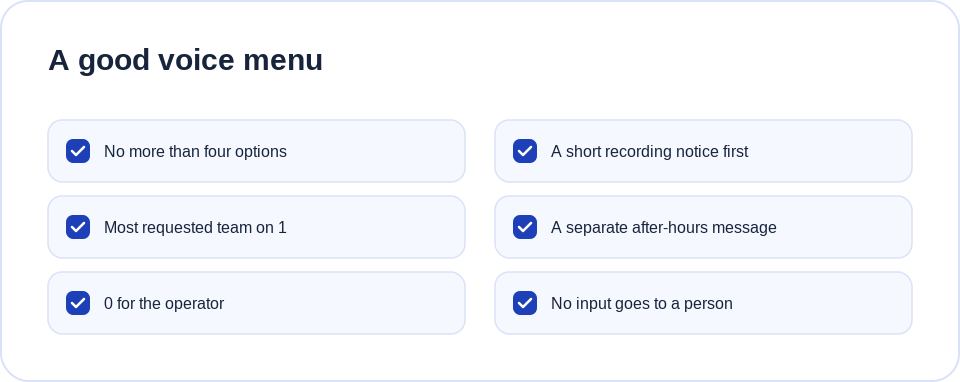
Callers hear the menu once; a short, predictable menu means fewer abandoned calls. Rules that work in practice:
- Offer no more than four options; use a sub-menu if you need more.
- Put the most requested team on 1.
- Use 0 for the operator or general line; callers expect it.
- Say the option first and the key second: “For sales, press 1.”
- Add the recording notice in one sentence at the start.
- Do not hang up on callers who press nothing; send them to a person or a queue.
Related pages: How to Build an IVR Welcome Menu
Example menus by sector
The same structure works in every sector with different options. A few examples:
Related pages: Cloud PBX for E-commerce: Orders and ReturnsCloud PBX for Clinics and PracticesCloud PBX for Multi-Branch BusinessesCloud PBX for Hotels: Reservations LineCloud PBX for Schools and Courses
E-commerce
1 order status, 2 returns and exchanges, 3 business sales, 0 customer service.
Clinic
1 appointments, 2 test results, 3 address and directions message, 0 front desk.
Multi-branch business
1 Istanbul, 2 Ankara, 3 Izmir branch; each branch to its own ring group.
Hotel
1 reservations, 2 reception, 3 events and meetings, reception at night.
How do you set up a voice menu?
In the customer panel, first upload the greeting in the Sound files section. Then create a menu on the Voice menus page, choose the greeting, assign destinations to the keys you use and set the wait time, repeats and fallback destinations.
Finally, on the Numbers page, set your business number’s destination to the menu or to a schedule that contains it. Changes reach your PBX within seconds, with no technical knowledge or extra hardware needed.
Related pages: Business Numbers: 0850, 0212, 0216, 444
Is IVR the same as a voice menu?+
Yes. IVR stands for interactive voice response; it is also called a voice menu or auto attendant.
Does the voice menu cost extra?+
No. Voice menus, nested menus and schedules are included in every TekSantral plan, starting at TRY 489 a month.
How many menu levels can I build?+
You build sub-menus by linking a key to another menu. We recommend no more than two levels so callers do not get lost.
Can callers dial an extension directly?+
Yes. Turn on extension dialling in the menu and callers can key in a known extension to reach that person directly.
Which audio files can I upload?+
You can upload MP3, WAV, OGG, M4A and FLAC files up to 20 MB. Audio is converted to 8 kHz for the phone line.
What happens if the caller presses nothing?+
The greeting repeats the number of times you set, then the call goes to the no-input destination, such as the operator or a queue.
Can a different greeting play after hours?+
Yes. When your number goes to a schedule, the voice menu plays in business hours and a closed message with voicemail takes over afterwards.
Can I change the menu myself?+
Yes. You change keys, sounds and destinations in the customer panel at any time, and changes apply within seconds.