Browser phone and mobile: Your phone isn’t a place. It’s wherever you work.
Browser calling, mobile apps and IP desk phones on a cloud PBX: when to use which, how to connect, and which headset and internet connection you need.
What is a browser phone?
A browser phone is a software phone that lets you call and answer straight from a web browser, with nothing to install. The Browser phone in the TekSantral customer panel signs in to your extension, and you talk from your business number through your computer’s microphone and speaker or a headset.
The browser phone works alongside your extension’s other devices. An incoming call rings on your desk phone, mobile app and browser at once; you continue on whichever you answer.
Related pages: What Is a Cloud PBX? How It Works, Pricing
What can you do with the browser phone?
The everyday phone functions are ready in the browser:
Call and answer
Dial with the keypad; incoming calls ring with a notification and answer/decline.
Hold and mute
Put calls on hold and mute the microphone.
Transfer
Transfer a call to another extension or number.
Key presses
Press keys in menus during a call.
Separate window
Keep the phone open in its own window while you use the panel.
Recent calls
Call back recent and missed calls in one click.
Browser phone, mobile app or desk phone?
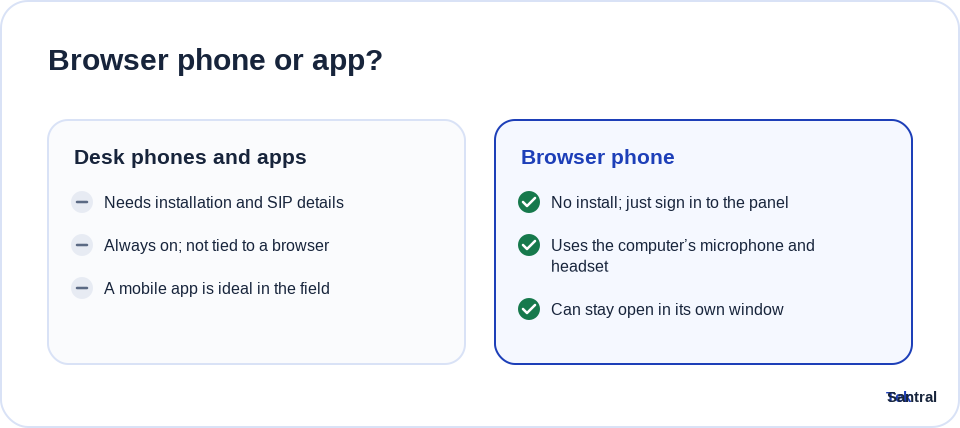
All device types can be used with the same extension; the choice depends on how you work. For people at a computer, the browser phone is the quickest start. People in the field prefer the TekSantral Mobile app on their Android phones, and points that are always on the phone, such as reception, prefer a desk phone.
Related pages: Mobile PBX App: TekSantral MobileChoosing IP Phones and Softphones
| Device | Setup | Best for | Watch out for |
|---|---|---|---|
| Browser phone | None; opens from the panel | Desk-based teams | The tab or window must stay open |
| TekSantral Mobile (Android) | App + QR code | Field and remote staff | Rings through push while closed |
| Other mobile SIP apps | App + SIP details | Other mobile phones | Push support to ring in the background |
| Softphones on a computer | Program + SIP details | Call centre agents | A USB headset is recommended |
| IP desk phone | Device + SIP details | Reception and front desk | SIP ALG should be off on the router |
What does the browser phone need?
A few simple conditions are enough to start:
- An up-to-date Chrome, Edge, Firefox or Safari.
- Microphone permission; the browser asks the first time.
- A stable internet connection; a call uses about 100 kbit/s.
- A headset to cut echo and noise.
- Keeping the phone open in a tab or separate window so calls are not missed.
Is the browser phone secure?
The browser phone opens only to users signed in to the customer panel and connects to the PBX over an encrypted link (WSS). Call audio is also encrypted between the browser and the PBX. Each extension has a separate, long, random browser password, renewed whenever the extension password is reset.
Browser calls follow the extension’s permissions: if international or premium calls are blocked, they are blocked in the browser too, and outgoing calls show the business number chosen for the extension.
Which teams is the browser phone for?
A browser phone with nothing to install saves time especially when:
Related pages: Cloud PBX for Real Estate AgenciesCloud PBX for Logistics Companies
New starters
They take calls on day one without waiting for setup.
Temporary teams
Extra agents join quickly for campaigns or busy seasons.
Managers
They call from the same screen while using the panel.
Shared computers
It works on computers where installing software is not allowed.
Common browser phone issues
Most issues come from browser settings and are fixed in a few steps:
The microphone does not work
Allow the microphone from the padlock in the address bar and check the right microphone is selected.
No ring on incoming calls
Make sure you pressed “Start phone” and the tab is open; use the separate window option.
It stays on “Connecting”
Check your connection; corporate firewalls must allow secure WebSocket connections.
Echo or crackling
Use a headset instead of speakers and a wired network if possible.
How do you open the browser phone?
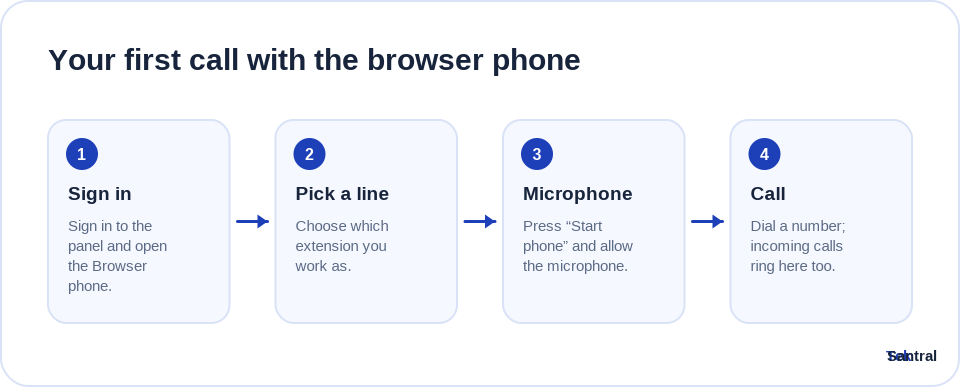
After signing in to the customer panel, you will see the Browser phone link in the left menu. If you have several extensions, choose which one to use and press “Start phone”; the browser asks for microphone permission. When the status shows “Connected”, you can make and take calls.
To avoid missing calls while you work on other pages, use “Open in a separate window”; the phone stays open in a small window while you keep using the panel. Turn on desktop notifications to see incoming calls even when the browser is in the background.
How do you connect a mobile or IP phone?
On Android phones the easiest way is the TekSantral Mobile app: scan the QR code from the Mobile app page of the web panel with the app and approve it in the web panel; no SIP details need to be typed, and calls ring even while the app is closed.
For other mobile SIP apps and IP phones, open the Extensions page in the panel; each extension’s SIP user name, password and server address are shown there. Enter them in the app or the IP phone’s settings screen and the device registers and shows as “Online” on the extension page. For a first test, call the *43 echo test.
If you use another SIP app, choose one with push notification support so calls reach you in the background. If audio is one-way, turn off SIP ALG on your router.
Related pages: Mobile PBX App: TekSantral MobileCustomer RegistrationSupport and Setup Guides
Do I need to install anything?+
No. Sign in to the customer panel, open the Browser phone and allow the microphone.
What if a call comes while the browser is closed?+
It keeps ringing on your other devices; if none are on, voicemail or your forwarding takes over.
Can I use one extension in the browser and on my mobile?+
Yes. Calls ring on every device together, and your business number shows whichever device you call from.
Which browsers are supported?+
Current Chrome, Edge, Firefox and Safari. It needs a secure (HTTPS) connection and microphone permission.
What do you recommend for audio quality?+
A wired or good wireless headset, stable internet and, if possible, a wired network connection.
Which mobile app should I use?+
On Android phones we recommend the TekSantral Mobile app: it connects with a QR code, rings while closed and is included in every plan. On other phones, apps with standard SIP and push notification support register with the details on the extension page.
Are browser calls recorded?+
Yes, your recording settings apply to the browser phone too.
How many browsers can one extension use at once?+
One extension can be signed in on up to two browsers at once; desk phones and mobile apps count separately.