
Which phone do you use with a cloud PBX?
A cloud PBX works with any device that supports SIP: desk IP phones, softphone apps on a computer, SIP apps on a mobile and phones that run in the browser. The right choice depends on where each person works and how much time they spend on the phone.
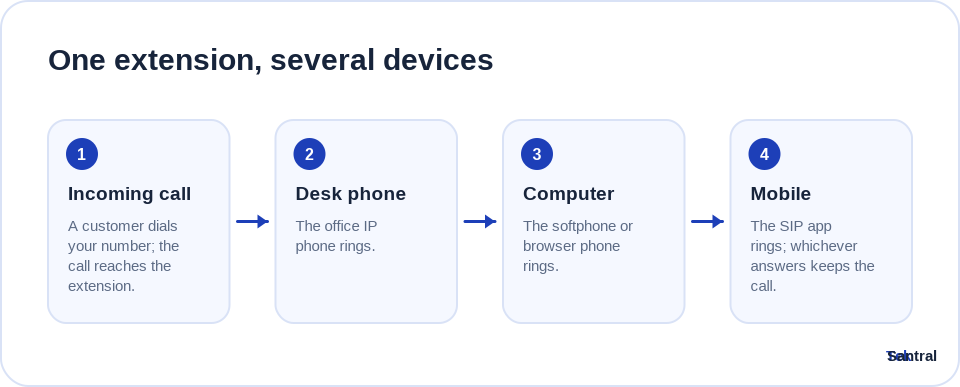
On a cloud PBX an extension is not tied to one device. A desk phone, a computer and a mobile can share the same SIP account; when a call comes in they all ring and the call continues on whichever you answer.
This guide covers each device type’s strengths, which suits which team, network settings for audio quality and the steps to connect a phone to an extension.
Desk IP phones
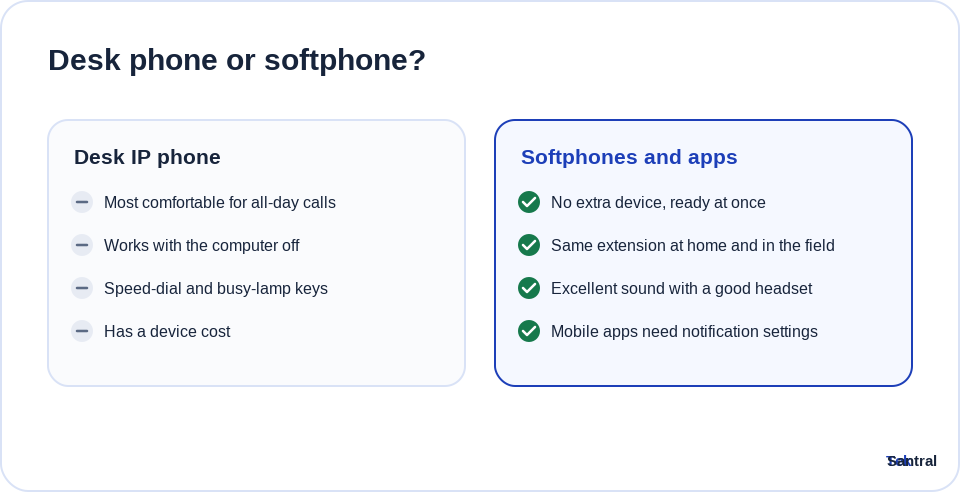
The most comfortable choice for reception, sales and support teams who are on the phone all day. SIP models from brands such as Yealink, Grandstream and Fanvil work well. A wired network connection, and PoE so no separate adapter is needed, make setup easier.
When choosing a model, look at the display, headset port and number of keys. For a reception that transfers often, a model with busy-lamp (BLF) keys shows at a glance whether a colleague is on a call.
Before installing desk phones, plan where network sockets and power will be; a PoE switch removes the need for an adapter at every desk and reduces cable clutter.
- SIP support and at least two accounts
- Wired network connection, ideally PoE
- Headset port (RJ9 or USB)
- BLF / speed-dial keys for transfers
Softphones on a computer
For teams using headsets, a softphone app on the computer is an economical choice. MicroSIP is light and free on Windows; Zoiper runs on Windows, macOS and Linux. A good USB headset noticeably improves audio quality.
A softphone shows the call next to the customer record on screen and needs no extra device. The downside is that no calls arrive while the computer is off or asleep, so adding the mobile app to the same extension is a good backup.
Calling from the browser
The browser phone in the TekSantral customer panel lets you make and answer calls on your extension without installing anything. Open the panel in Chrome, Edge, Firefox or Safari, start the phone and allow the microphone.
The browser phone shares the extension with your desk phone and apps; all ring together. The browser does not ring when the page is closed, so if you use it all day keep the phone open in a separate window.
Related pages: Browser Phone, Mobile and IP Phones
SIP apps on mobile
People in the field or at home can call and answer on the business number with apps such as Zoiper, Linphone or Groundwire. Some apps use a push service to receive calls in the background; check the app’s battery and background permissions.
On mobile data a call uses about 100 kbit/s; an hour of talk uses a few tens of megabytes. Where coverage is weak, switching to Wi-Fi improves audio.
Which device for which team?
Different teams in one business work best with different devices:
| Team | Recommended device | Why |
|---|---|---|
| Reception and front desk | Desk phone with display and BLF keys | Frequent transfers and seeing who is busy |
| Sales and support teams | Softphone or browser phone + USB headset | Hands free, customer record on screen |
| Field and remote staff | SIP apps on mobile | The business number from anywhere |
| Managers | Desk phone + mobile app | The same extension rings on both |
Audio quality checklist
Most audio problems come from network settings:
- Turn off SIP ALG on the router.
- Enable NAT keep-alive on phones.
- Connect desk phones by cable where possible.
- Avoid large uploads during calls.
- Test audio by dialling *43.
How do you prepare your office network?
IP phones share your internet connection with computers. To keep audio clear while large uploads, video meetings and backups run, turn on QoS (priority for voice traffic) if your router has it. In larger offices, putting phones on a separate VLAN keeps voice apart from other traffic.
Softphones and mobile apps on Wi-Fi need a strong signal. In offices where many people talk at once, adding access points in busy areas reduces dropouts.
Security when working remotely
Extension details are a username and password; if someone else gets them, calls can be made in your name. Do not share SIP passwords by email or messaging, remove accounts from unused devices and renew the extension password in the panel when someone leaves.
In TekSantral, international and premium-rate calls are blocked by default for security, which limits the impact of any misuse. You can ask for them to be enabled with a support request.
How do you budget for devices?
Not every employee needs a desk phone. Plan desk phones first for people who are on the phone all day; others can start with the computer or mobile app. Adding devices where they are needed as habits become clear keeps total cost down.
Choosing a headset
For people on the phone all day, the headset matters as much as the device. A wired model matching the phone’s headset port on desk phones, or a USB headset with a noise-cancelling microphone on computers, gives the clearest sound. In open offices, two-ear models reduce distraction; wireless headsets add freedom of movement but need charging.
Setting up many devices
If you set up many desk phones, prepare one sample configuration for the same model and change only the username and password, instead of entering everything by hand. Keeping a list of which phone belongs to which extension makes faults and changes easier.
How do you set up the mobile app?
After installing a SIP app on your mobile, add an account and enter the username, password and server from the extension page. To let the app run in the background, exempt it from battery saving and allow notifications. Some apps’ push service alerts you to calls even while the phone sleeps.
After setup, try the *43 echo test over both Wi-Fi and mobile data. If audio is clear on both, the app is ready for the field.
What happens when you change phones?
Because the extension is not tied to a device, changing phones only means entering the same SIP details on the new one; your number, settings and voicemail stay the same. Remember to remove the account from the old device.
Meeting rooms and shared areas
For meeting rooms, speaker conference phones make it easy for several people to join one call; they also use SIP and are added to the PBX as an extension. In shared areas such as a warehouse, workshop or entrance, wall-mounted phones or one shared extension give everyone a contact point. Adding these extensions to a ring group keeps calls in shared areas from going unanswered.
How do I connect a phone to an extension?
In the panel, open the extension under Extensions. The SIP username, password and server address are shown there. Enter these three values in the phone’s or app’s account screen; within a minute the extension shows as “Online”.
After connecting, dial *43 for an echo test: if you hear yourself, audio works both ways. Then call another extension and your mobile to test inbound and outbound calls.
Related pages: Support and Setup GuidesCloud PBX Migration Guide and Checklist