
How does a Verimor number connect to a cloud PBX?
Verimor lets you route your number to another PBX over SIP. TekSantral uses an IP-based connection for this: Verimor sends calls to our PBX IP address and no username or password is needed.
Verimor’s signalling addresses are trusted in our system, so the connection works without waiting for approval. Setup has two sides: first you create your number and call flow in TekSantral, then you route the number’s calls to the PBX in the Verimor panel.
This guide explains step by step the setup in TekSantral, routing and outbound permission in the Verimor panel, connecting phones, minute tracking and fixes for common problems.
Before you start
Have these ready:
Because IP routing involves no ongoing registration, the easiest way to confirm the link works is to call the number from a mobile and watch the call appear on the panel’s Live status screen.
- Your Verimor number (0850 or fixed line)
- Your Verimor customer panel login
- The TekSantral PBX address: shown in your panel once your service is active
- A list of people who will answer calls
1. Set up the number in TekSantral
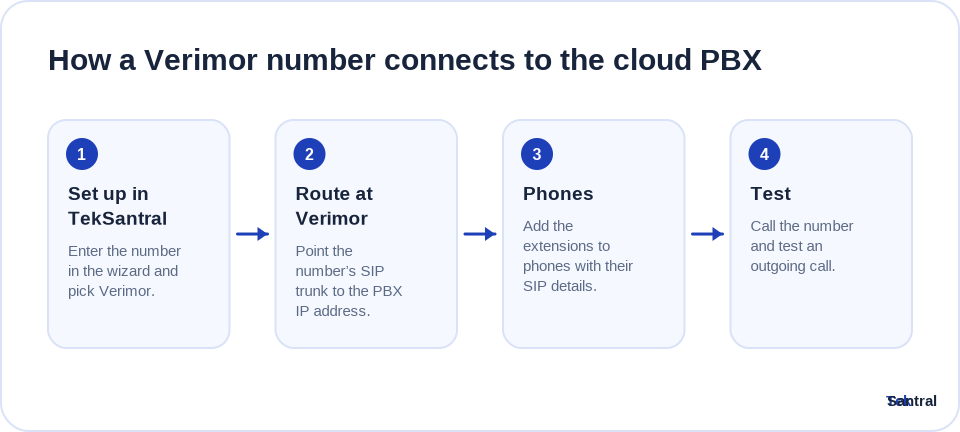
Open the Easy number setup wizard in the panel, enter your number and choose Verimor as the provider. Then decide who answers, what callers hear first and your business hours. The wizard creates the trunk, extensions and routing together.
When setup finishes, the result screen summarises each extension’s SIP details and the routing to set at Verimor. You can switch to the Verimor panel without closing it.
Deciding beforehand which team the number goes to means calls reach the right people the moment you switch on routing at Verimor.
2. Set up routing in the Verimor portal
In the Verimor customer portal, open your number’s PBX or SIP trunk settings and enter the TekSantral PBX IP address as the routing destination. Menu names can differ between portal versions; if unsure, ask Verimor support to route your number to that IP address over a SIP trunk.
For outgoing calls, Verimor must also authorise outgoing calls from the PBX IP address. Without it incoming calls work but you cannot call out.
3. Connect phones and test
Connect your phones or softphone apps with the SIP usernames and passwords on the result screen. Then call your Verimor number from your mobile: the greeting should play and the phones you chose should ring.
To test outbound calls, call your mobile from an extension and check which number is shown.
Related pages: Choosing IP Phones and Softphones
Several Verimor numbers and outbound calls
You can route the other numbers on the same Verimor account to TekSantral as well. The PBX knows the Verimor line once; for each further number you choose Verimor again in Easy number setup and the existing line is reused.
Outbound calls also go over the Verimor line. For each extension choose one of the numbers on your Verimor account as the caller ID; providers only let you present numbers that belong to you.
How do I track the minutes used?
As Verimor has no public API for voice balances, TekSantral counts the talk time on your Verimor trunk from PBX records. Turn on tracking on the Provider trunks page and enter your monthly package and renewal day to see remaining minutes in the panel and get an email when they run low.
The count rounds each call up to the minute and is an estimate; Verimor’s records are what you are billed on.
Troubleshooting
The most common situations and their fixes:
Calls never reach the PBX
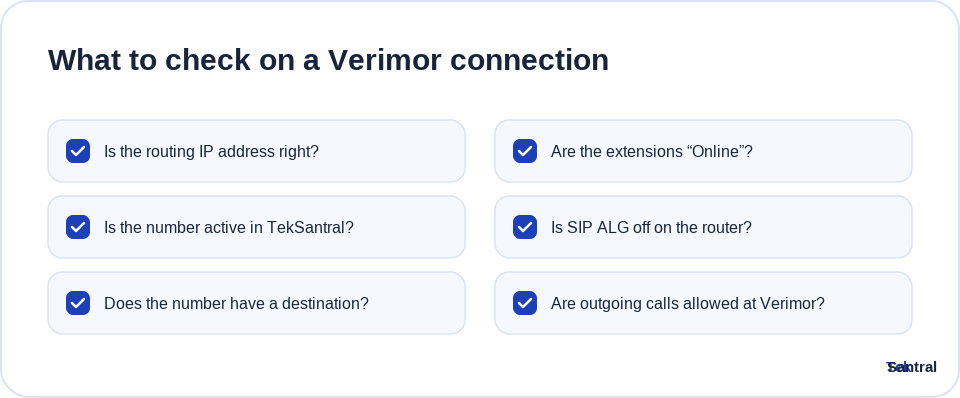
Check the routing IP address in the Verimor panel; if you just changed it, wait a few minutes.
Phones do not ring
On the Numbers page, check the number is active and routed, and that extensions show as “Online”.
One-way audio
Turn off SIP ALG on the router and enable NAT keep-alive on the phone; test with *43.
I cannot call out
Check that Verimor allows outgoing calls from the PBX IP and that your account has credit or minutes.
Is IP routing secure?
IP routing uses no password; security relies on accepting calls only from known addresses. TekSantral accepts calls from Verimor’s signalling addresses only for numbers registered in the system and delivers each number only to its owner’s PBX, so no other customer can receive calls to your number.
For outgoing calls, Verimor links calls from the PBX IP address to your account, so you only need to allow outgoing calls from the TekSantral PBX address.
Example: a business with two branches
A company with branches in Ankara and İzmir can use its Verimor 0850 number as the main customer line and two city numbers as branch lines. All three arrive at TekSantral over the same Verimor trunk: the 0850 number to an IVR menu, the city numbers straight to each branch’s ring group.
Branches call each other by dialling an extension; these calls do not go through the provider and use no minutes. On outgoing calls each branch presents its own city number.
Related pages: Cloud PBX for Multi-Branch Businesses
Tips for audio quality
Because the link between Verimor and the PBX runs between data centres, audio quality is mostly decided by your office internet. Turning off SIP ALG, wiring desk phones and moving heavy file transfers outside call hours are the most effective steps.
Moving from Verimor’s own PBX
If your number used Verimor’s own PBX service before, rebuild your menu, hours and extensions in TekSantral first when moving. Then change the number’s routing in the Verimor panel to the TekSantral IP address. Download your old recordings and upload them under Audio files in TekSantral to keep your greeting exactly as it was.
Channels and concurrent calls
How many calls can run at once depends on two limits: the channels your Verimor account allows and the concurrent calls in your TekSantral plan. With the Business plan, for example, you can reach 10 simultaneous calls; make sure your Verimor account supports that too. You can also cap a trunk’s channels on the Provider trunks page.
After setup
Once the connection works, complete these steps:
- Choose the outgoing caller ID for each extension.
- Add public holidays to the schedule.
- Turn on call recording and its notice if needed.
- Turn on minute tracking and enter your monthly package.
Undoing the Verimor routing
If you ever need to go back, change the number’s routing in the Verimor panel to its previous destination; your TekSantral configuration is not deleted and works again as soon as you route back. Note the existing Verimor routing before switching for this reason.
A small call centre on a Verimor number
By connecting your Verimor number to a call queue you can run a customer service line with a few agents. When all agents are busy, callers hear hold music and reach the first free agent; if they wait longer than your limit, the call goes to voicemail or another team. Record inbound calls and follow the call history to see how busy the team is and which calls were missed.
Related pages: Call Centre PBX: Queues, IVR and Recording
Does my number stay with Verimor?
Yes. The subscription, billing and minute packages stay with Verimor; TekSantral provides only the PBX that answers and routes calls. You get menus, schedules, queues, recording and multi-device ringing without changing provider. If you change provider later, you can port the number or add the new provider’s trunk to the same PBX.
Verimor vs NetGSM connection
The two providers connect numbers differently:
| Topic | Verimor | NetGSM |
|---|---|---|
| Method | IP routing | SIP registration |
| What you need | The PBX IP address | SIP username and password |
| Provider panel setup | Routing and outbound permission | None |
| Minute tracking | From PBX records | NetGSM API or PBX records |
Related pages: Cloud PBX Setup with a NetGSM SIP AccountWhat Is a SIP Trunk? Connect Your Line