
How the NetGSM connection works
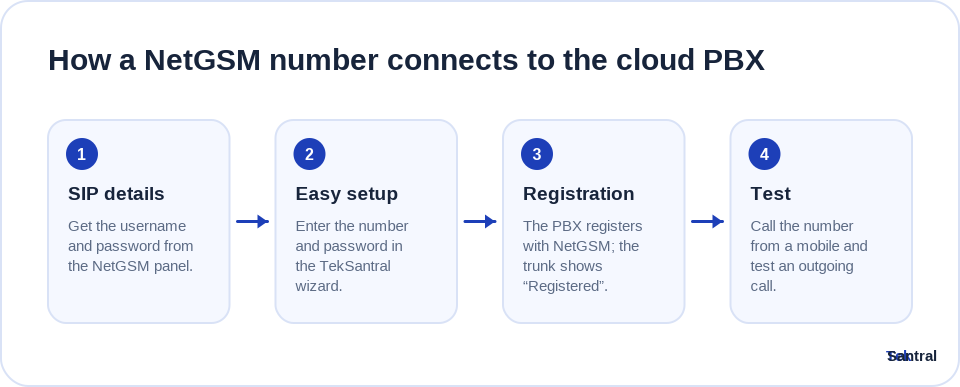
NetGSM numbers connect to TekSantral with a SIP account: our PBX registers with your NetGSM SIP account and incoming calls arrive over that registration. Nothing needs to be routed on the NetGSM side.
Registration is the PBX telling the provider “I am here”, just like a phone. While registered, NetGSM sends calls to your number to the PBX, which passes them to your team according to your greeting, menu and hours. Outgoing calls go to NetGSM over the same account.
This guide explains step by step where to find the SIP details, how to set up in TekSantral, what trunk states mean, how to manage several numbers and how to turn on minute tracking.
What do you need before you start?
These are all you need:
Another advantage is that a change of IP address at your office or PBX does not affect the connection; since registration uses a username and password, nothing needs updating at NetGSM.
- Your NetGSM number (e.g. 0850 302 11 61)
- Your NetGSM SIP username (usually the number without the leading 0)
- Your NetGSM SIP password
- A list of people who will answer calls
Find the SIP details
The SIP username and password are in the PBX or SIP settings of your number in the NetGSM portal. If you cannot find the password, create a new SIP password in the portal or ask NetGSM support.
If the number was registered to another PBX or a desk phone before, the same SIP account registered in two places can send calls to the wrong place. When moving to TekSantral, remove the account from the old device or renew the SIP password.
Watch for leading and trailing spaces when entering the details; an unnoticed space in a pasted password can get the trunk rejected.
Setup in TekSantral
In the Easy number setup wizard, enter your number and choose NetGSM as the provider. If you leave the username empty, your number without the leading 0 is used; enter the SIP password. Then choose who answers, the greeting and business hours to finish.
After setup, watch the trunk status on the Provider trunks page. “Registered” means the connection is up; call your number from a mobile to test the greeting and ringing.
Related pages: What Is a SIP Trunk? Connect Your Line
Registration status and troubleshooting
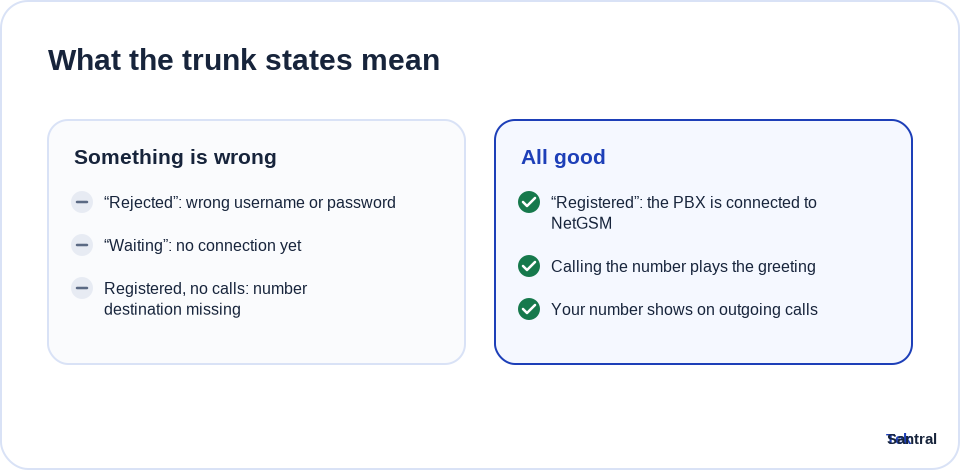
The trunk status tells you where the problem is:
“Rejected — check credentials”
NetGSM did not accept the details. Check the username and password and enter them again on the Provider trunks page.
“Not registered”
The PBX has not reached NetGSM yet. Wait a few minutes; if it does not change, open a support request.
Registered but no calls arrive
On the Numbers page, check the number is active and routed; make sure it is not registered on another device too.
Several NetGSM numbers
At NetGSM each number usually has its own SIP account. Each number is then added to TekSantral as a separate trunk that registers with its own username. If you enter the same username again, the wizard reuses the existing trunk.
The priority order on the Provider trunks page decides which trunk outbound calls use; if one is unreachable, the next one is tried. Put the trunk of the number you call out with most at the top; providers only let you present numbers that belong to them.
Minutes and credit tracking
For your NetGSM trunk you can turn on minute and credit tracking on the Provider trunks page. TekSantral then reads your credit and remaining voice-package minutes through the NetGSM account API and emails you when they drop below your warning level.
For this, create a user with API access under Settings → API in the NetGSM panel. If you restrict IPs, allow the TekSantral web server’s address.
Connecting your NetGSM number to a menu: an example
Take an accounting office: when its NetGSM 0850 number is called, a short greeting plays with “1 for tax returns and appointments, 2 for payroll, 0 for anything else”. Key 1 goes to a ring group ringing two accountants, 2 to the payroll officer and 0 to the front desk. After 6 pm the same number plays the after-hours message and takes voicemail.
The whole flow is set up in minutes with Easy number setup and IVR menus; nothing extra is needed at NetGSM.
Outgoing calls and caller ID
On calls made over the NetGSM trunk, your NetGSM number is shown. If you have several NetGSM numbers, choose which one each extension presents; it must belong to the trunk the call goes out on.
Outgoing calls are charged by your provider’s tariff. If you have a minute package, track the remaining minutes in the panel through the NetGSM API and get an email when it runs low.
Keeping your SIP password safe
Your NetGSM SIP password is the key to making calls with your number. Enter it only in the TekSantral panel and never share it by email or message. TekSantral stores provider passwords encrypted and never shows them in plain text. If something looks suspicious, renew the password in the NetGSM panel and enter the new one in the trunk settings.
Why does registration drop?
The most common reasons a trunk leaves “Registered” are a password change, the same SIP account used on another device, and temporary outages at the provider. The PBX renews the registration regularly, so after a short outage the trunk usually registers again by itself. If it does not recover, check the details on the Provider trunks page and open a support request.
Audio quality and codecs
Calls between the provider trunk and the PBX use the G.711 (alaw) codec widely used in Turkey. It gives clear telephone-quality audio without conversion. Audio problems usually come from the office internet and router settings, not from the provider trunk.
Using NetGSM as a backup trunk
If you use several providers, NetGSM can also serve as a backup trunk. You set the trunk priority on the Provider trunks page; if the first trunk is unreachable, outgoing calls use the next one. Remember that the caller ID must belong to the trunk the call goes out on.
After setup
Once the NetGSM trunk works, complete these steps:
- Choose the outgoing caller ID for each extension.
- Add public holidays to the schedule.
- Turn on call recording and its notice if needed.
- Turn on minute and credit tracking with the NetGSM API.
- Connect phones and run the *43 echo test.
Combining your NetGSM number with voicemail and email
One of the most practical setups for small teams is for the NetGSM number to ring everyone at once and fall back to voicemail if nobody answers. If you set an email address on the mailbox, each new message arrives as an audio file in your inbox, so no customer request is lost while you are out and you can listen and call back at once.
Do I need to port my NetGSM number to use TekSantral?
No. Your NetGSM number stays with NetGSM; TekSantral only provides the PBX. The subscription, billing and minute packages continue between you and NetGSM. This lets you modernise your PBX without changing provider. If you change provider later, you can port the number or add the new provider’s trunk and keep the same PBX.
SIP registration vs IP routing
Providers connect numbers to a PBX in two ways:
| Topic | SIP registration (NetGSM) | IP routing (e.g. Verimor) |
|---|---|---|
| What you need | Username and password | The PBX IP address |
| Provider-side setup | None | Routing the number to the IP |
| Status | The trunk shows “Registered” | Visible when a call arrives |
| When the password changes | Update it in the panel | Not affected |
Related pages: Connecting a Verimor Number to a Cloud PBX